I. Trên Website:
Bước 1: Mặc định PayPal không hỗ trợ tiền tệ đồng Việt Nam, để sử dụng được VNĐ, copy đoạn code này vào function.php
// allow VND for WooCommerce
add_filter(‘woocommerce_paypal_supported_currencies’, ‘enable_custom_currency’);
function enable_custom_currency($currency_array) {
$currency_array[] = ‘VND’;
return $currency_array;}
Bước 2: Tại Woocommerce, chọn Cài đặt (Settings) -> Thanh toán (Checkouts) -> Paypal
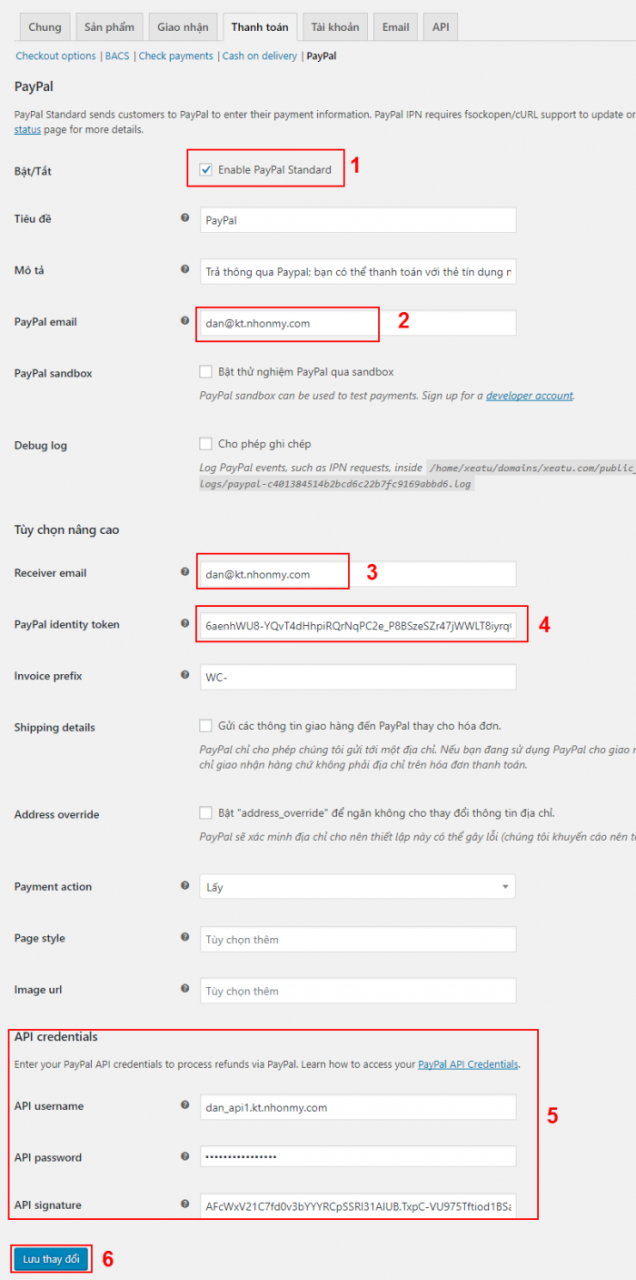
Bước 3: Cài đặt thanh toán Paypal như hình
1/ Chọn Enable Paypal Standard
2/ Nhập Email Paypal
3/ Nhập lại Email
4/ PayPal identity token. Lấy PayPal identity Token
5/ API Credentials. Lấy tại đây
Sau khi nhập đầy đủ thông tin, chọn Lưu thay đổi (Save) để lưu lại
II. Trên Paypal.com
1. Lấy PayPal identity token
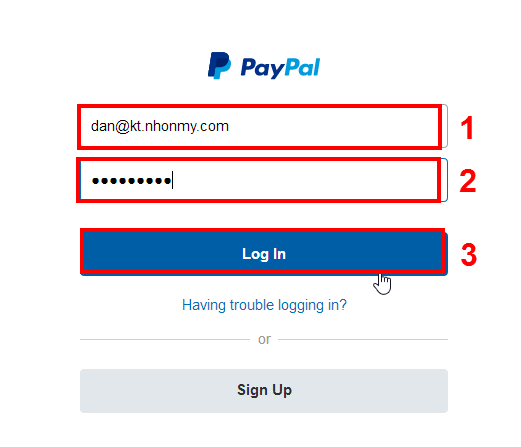
Truy cập trang www.paypal.com/signin để đăng nhập
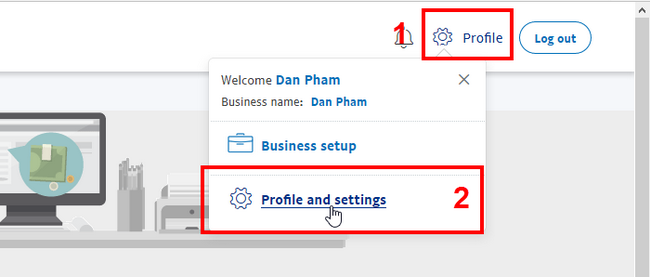
Bước 2: Chọn Profile -> Profile and settings
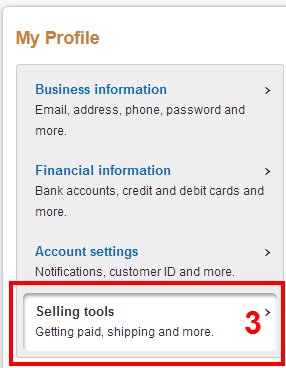
Bước 3: Tại My Profile, chọn Selling tools
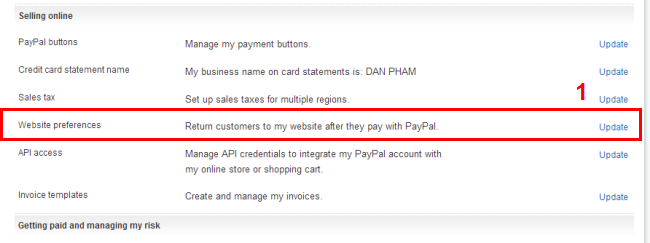
Bước 4: Tại Website preferences chọn Update
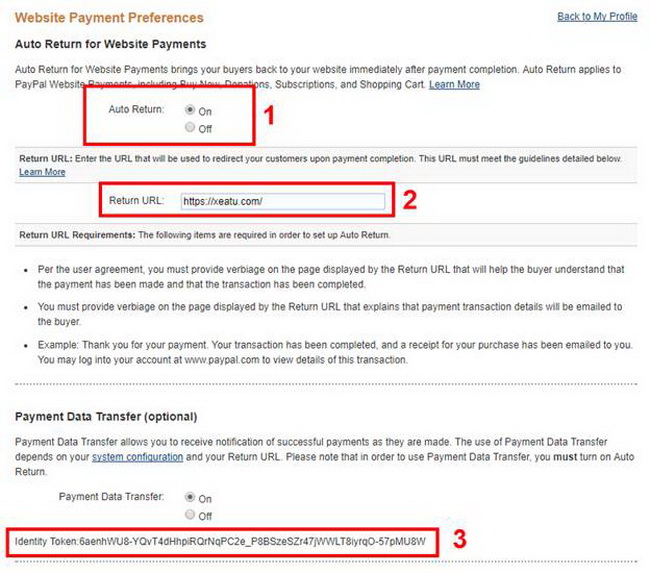
Bước 5: Chọn:
1/ Auto Ruturn: On
2/ Return URL: Link website trả về sau khi thanh toán
3/ Payment Data Transfer: On
Copy Identity Token ra một file để sử dụng cho Woocommerce
4/ Chọn Save để lưu lại

2. Lấy API credentials
Lặp lại các bước từ 1 đến 3 như phần lấy PayPal identity token
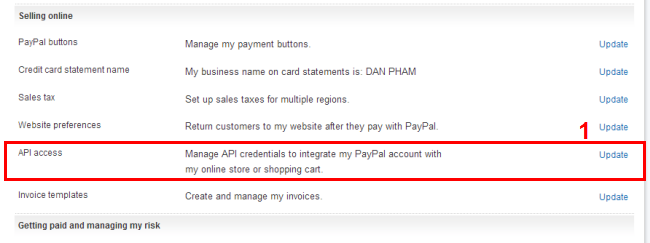
Bước 4: Tại API access, chọn Update
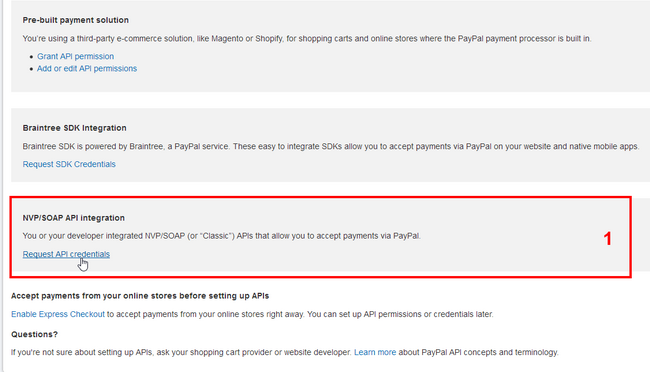
Bước 5: Tại NVP/SOAP API integration, chọn Request API credentials
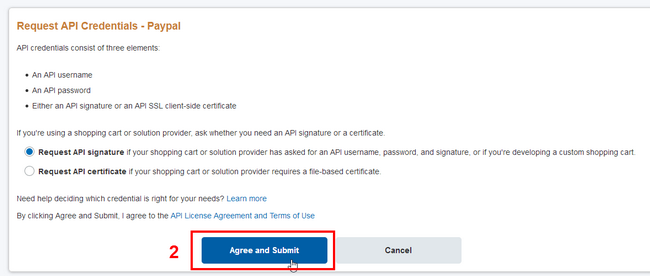
Bước 6: Chọn option Request API signature và Agree and Submit để lấy API credentials
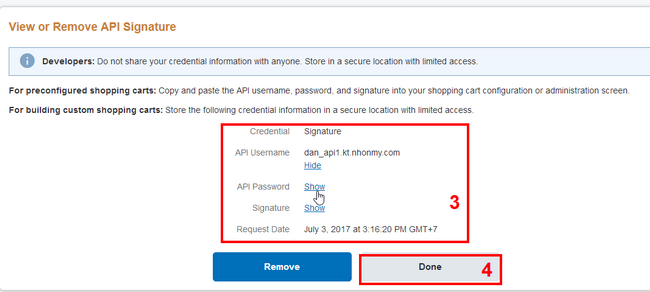
Bước 7: Chọn Show để hiện thị các thông tin, copy lại để dán vào Woocommerce
Sau khi hoàn tất, chọn Done để kết thúc.